

iOS Devices
- Connect your iPhone or iPad to the same Wi-Fi network as your Apple TV, AirPlay-compatible smart TV or Mac.2
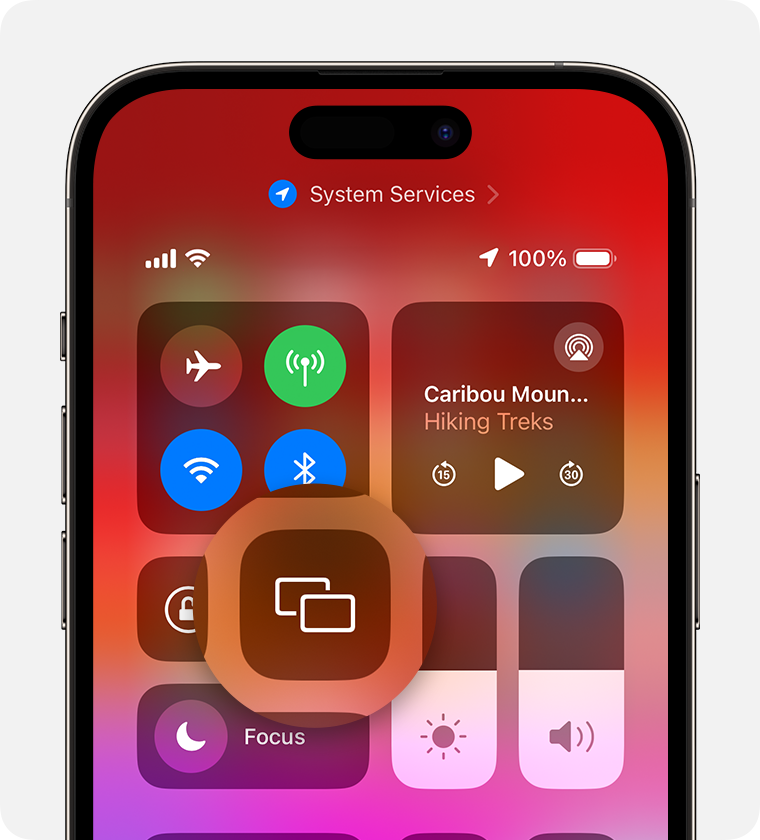
- Open Control Centre:
- On iPhone X or later, or iPad with iPadOS 13 or later: swipe down from the top right-hand corner of the screen.
- On iPhone 8 or earlier, or iOS 11 or earlier: swipe up from the bottom edge of the screen.
- Tap the Screen Mirroring button
 .
.
- Select your TV or Mac from the list.
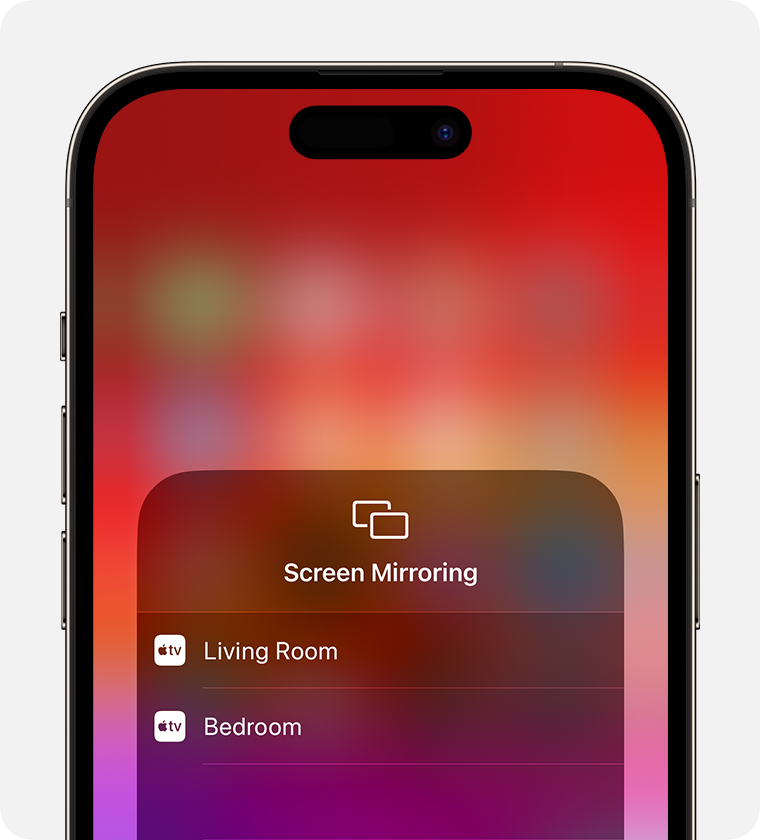
- If an AirPlay passcode appears on your TV screen or Mac, enter the passcode on your iPhone or iPad.
To stop mirroring your iPhone or iPad, open Control Centre, tap Screen Mirroring, and then tap Stop Mirroring. Or press the Menu button on your Apple TV Remote.
macOS Devices
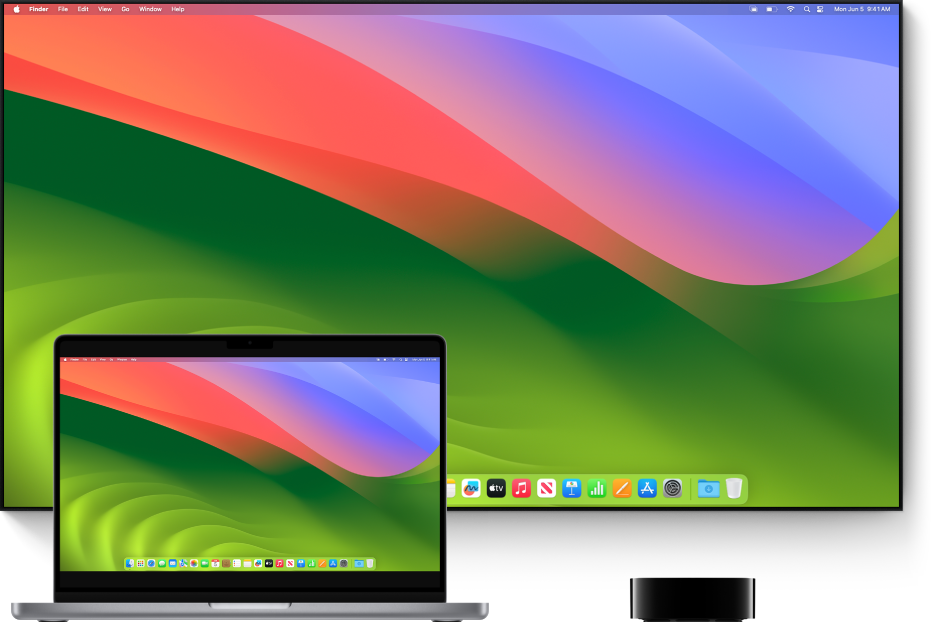
AirPlay Mirroring lets you send what’s on your Mac to an HDTV wirelessly with Apple TV.
-
Make sure your Mac and Apple TV are on the same network.
-
Click Control Centre
 in the menu bar, click the Screen Mirroring icon
  , then choose your Apple TV.
 -
If asked, enter a four-digit code on your Mac.
-
To set whether your desktop mirrors or extends your Mac screen, click the Screen Mirroring icon
 , then choose Mirror Built-in Display or Use As Separate Display.
Comments
0 comments
Article is closed for comments.